Hello friends in this blog I am going to show some ShortCut keys that will surely amaze you. Keys which i am giving is really cool and surely amazing

A special key combination that causes a specific command to be executed. Typically, shortcut keys combine the Ctrl or Alt keys with some other keys. In Windows environments, for example, Ctrl +C is used as the shortcut key to copy. On PCs, the function keys are also often used as shortcut keys.
Most applications come with some shortcut keys already defined. Many, however, allow you to define your own shortcut keys for frequently-used commands.
Now the question arises that what is need to use these keys? Show let me tell you my reader that ShortCut Keys are used to do the work easily and in less time as usual. Many don’t think that ShortKeys are benificial, but let me tell you that people who are doing their jobs in computer related, they must have the knowledge of ShortCut Keys and who are doing coding in order to build their future must have grip in ShortCut Keys.
Let’s Begin!!
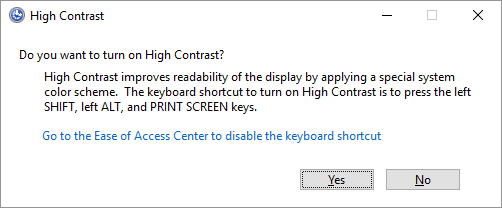
1- High Contrast: SHIFT + ALT + PRINT
This shortcut key opens a warning window before applying any changes. Click Yes or simply hit Return to switch to the high contrast setting. This will Enlarge the text font and do the contrast high as usual.
Clicking the same key combination again reverts the changes.
2- Rotate Screen:
CTRL + ALT + UP/DOWN/LEFT/RIGHT Arrowt
This Key does not available at every machine as it depends on your graphics card and video drivers.

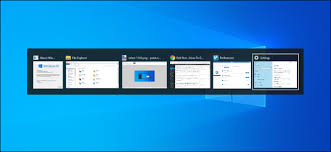
3- Switch Between Open Windows: ALT + TAB
Have you ever accidently pressed any key and see many windows altogether?
Yes, It might happened. Let’s now try to resolve the problem that we faced.
Generally, It was nothing but you have accidently pressed ShortCut Key
Alt+Tab which allow you to see the windows that are opening and running in
back ground. You can see the below sample which tell you the problem.
4- Delete Without Confirmation:
SHIFT + DELETE
Whenever you delete any file/folder you get the below Pop-Up Window.
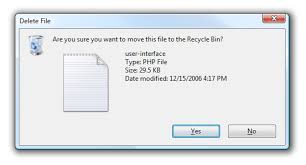
But by using ShortCut key Shift+Delete, the Pop-Up Window will not appear.
You simply delete it by pressing shortcut key at moment.
5- Show Desktop / Restore Open Windows:

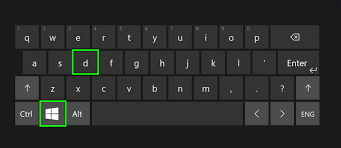
+ D (Window Logo Key + D)
Let me explain you with example, Imagine you open chrome on PC and exploring site. Suddenly you remember that you have exam next day and have to study. Now you have to close chrome, but what you see that the exit button that is available at top right corner is not appearing (Just Imagine, However, It Is Not Possible). Now you have to urgently close the chrome, Now the use of ShortCut Key will come. You have to simply press WINDOW KEY + D and the desktop will re-appear. Now again Press WINDOW KEY + D, Your chrome application will re-store.
6- Lock System:
+ L (Window Logo Key + L)
It is just like SLEEP. There are two ways to sleep through ShortCut Key but one is slightly Time-Taking than other one. I am blogging less Time-Taking procces. You have to simply press WINDOW KEY+L. and the all screen appear black. it is generally less time taking than ShutDown. Now open your PC after coming, everything will Re-Stote.
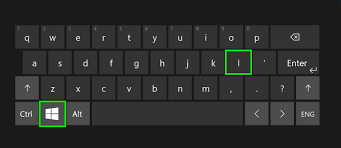
( If You Want To Know The Other Method Although It Is Lengthy, Please Comment At Bottom Of This Article)
Below are some ShortCut Keys that are used in other apps
Chrome:
| Ctrl+N | Open a new window |
| Ctrl+Shft+N | Open a new window in incognito mode |
| Press Ctrl, and click a link | Open link in a new tab |
| Press Shft, and click a link | Open link in a new window |
| Alt+F4 | Close current window |
| Ctrl+T | Open a new tab |
| Ctrl+Shft+T | Reopen the last tab you’ve closed. Google Chrome remembers the last 10 tabs you’ve closed. |
| Drag link to tab | Open link in specified tab |
| Drag link to space between tabs | Open link in a new tab in the specified position on the tab strip |
| Ctrl+1 through Ctrl+8 | Switch to the tab at the specified position number. The number you press represents a position on the tab strip. |
| Ctrl+9 | Switch to the last tab |
| Ctrl+Tab or Ctrl+PgDown | Switch to the next tab |
| Ctrl+Shft+Tab or Ctrl+PgUp | Switch to the previous tab |
| Ctrl+W or Ctrl+F4 | Close current tab or pop-up |
| Alt+Home | Open your homepage |
| Ctrl+O, then select file | Open a file from your computer in Google Chrome |
PowerPoint:
| Go to “Tell me what you want to do” | Alt + Q |
| Zoom | Alt + W, Q, Tab to value you want |
| Switch between outline and thumbnail pane | Ctrl + Shift + Tab |
| Move to next placeholder (if on slide’s last placeholder, this inserts a new slide) | Ctrl + Enter |
| Insert a new slide | Ctrl + M |
| Duplicate the current side | Ctrl + D |
| Increase font size | Ctrl + Shift + > |
| Decrease font size | Ctrl + Shift + < |
| Display the font dialog box | Ctrl + T or Ctrl + Shift + F |
| Change case | Shift + F3 |
| Apply superscript formatting | Ctrl + Equal sign |
| Apply subscript formatting | Ctrl + Shift + Plus sign |
| Remove manual character formatting | Ctrl + Spacebar |
| Center a paragraph | Ctrl + E |
| Justify a paragraph | Ctrl + J |
| Left align a paragraph | Ctrl + L |
| Right align a paragraph | Ctrl + R |
| Promote a paragraph in an outline | Alt + Shift + Left arrow |
| Demote a paragraph in an outline | Alt + Shift + Right arrow |
| Move selected outline paragraphs up | Alt + Shift + Up arrow |
| Move selected outline paragraphs down | Alt + Shift + Down arrow |
| Display outline heading level 1 | Alt + Shift + 1 |
| Expand outline text below a heading | Alt + Shift + + |
| Collapse outline text below a heading | Alt + Shift + – |
| Collapse or show all text or headings | Alt + Shift +A |
| Show or hide the grid | Shift + F9 |
| Show or hide the guides | Alt + F9 |
| Activate the pen tool during a show | Ctrl + P |
| Erase pen tool drawings during a show | E |
Word:
| ALT+TAB | Switch to the next window. |
| ALT+SHFT+TAB | Switch to the previous window. |
| CTRL+W or CTRL+F4 | Close the active window. |
| ALT+F5 | Restore the size of the active window after you maximize it. |
| F6 | Move to a task pane from another pane in the program window (clockwise direction). You may need to press F6 more than once. |
| SHFT+F6 | Move to a task pane from another pane in the program window (counterclockwise direction). |
| CTRL+F6 | When more than one window is open, switch to the next window. |
| CTRL+SHFT+F6 | Switch to the previous window. |
| CTRL+F10 | Maximize or restore a selected window. |
| PRINT SCREEN | Copy a picture of the screen to the Clipboard. |
| ALT+PRINT SCREEN | Copy a picture of the selected window to the Clipboard. |
| CTRL+F12 or CTRL+O | Display the Open dialog box. |
| F12 | Display the Save As dialog box. |
| ALT+1 | Go to the previous folder. |
| ALT+2 | Up One Level button: Open the folder one level above the open folder. |
| DELETE | Delete button: Delete the selected folder or file. |
| ALT+4 | Create New Folder button: Create a new folder. |
| ALT+5 | Views button: Switch among available folder views. |
| SHFT+F10 | Display a shortcut menu for a selected item such as a folder or file. |
| TAB | Move between options or areas in the dialog box. |
| F4 or ALT+I | Open the Look in list. |
| F5 | Update the file list. |
Thanks for reading our blog
Hope you learned something new!
OUR YOUTUBE CHANNEL
{Click Below image to explore our YouTube channel}

A BLOG BY








 Prakhar Mishra Tech Of All Things